The Tools section simplifies your everyday banking by letting you reorder checks and send secure messages. You can also set up text alerts, find branch locations, and safely submit official forms.
Check Services
To access Check Services, navigate to the Tools tab on the menu.
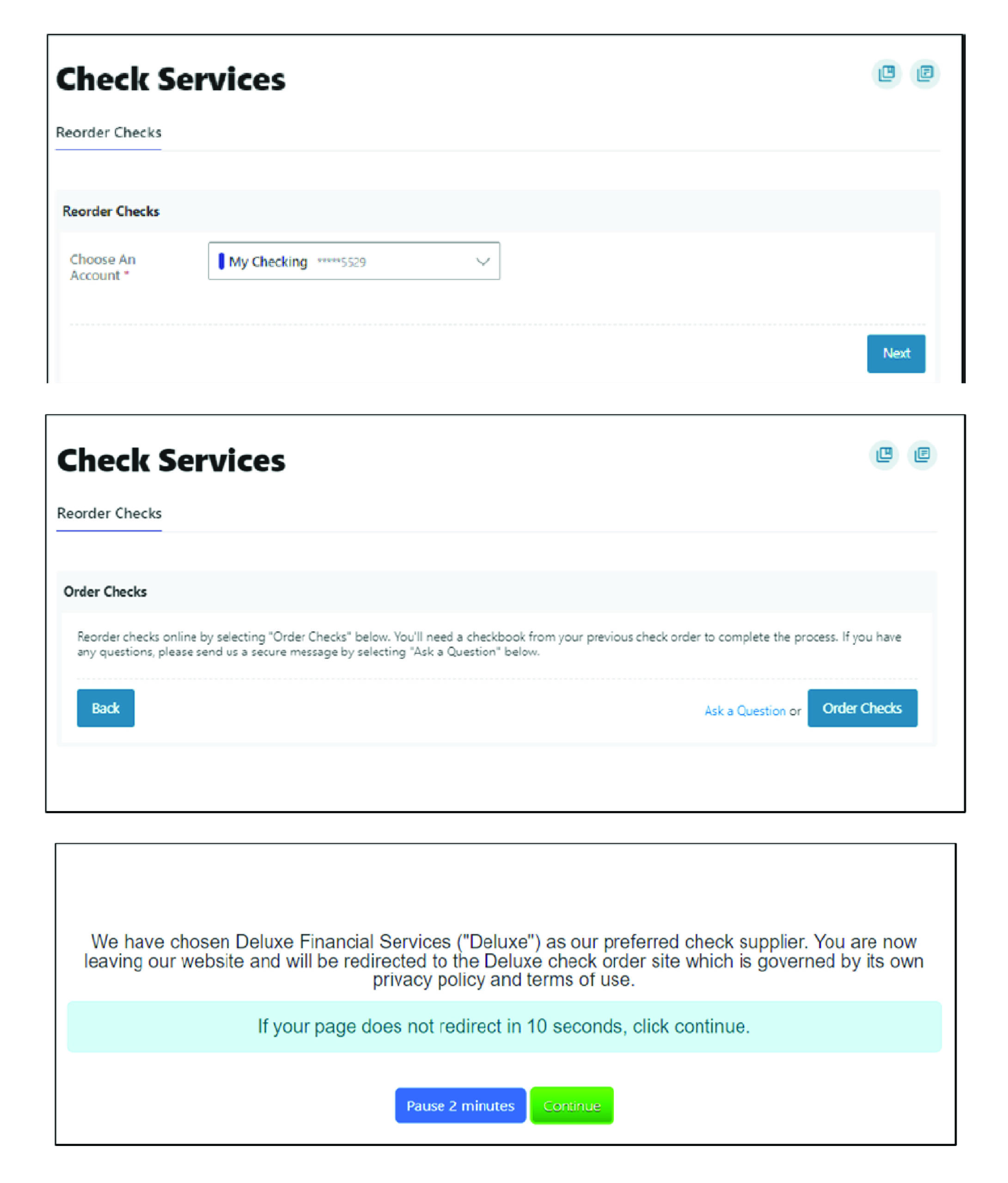
Reorder Checks
- Select the account from the dropdown menu and click the “Next” button
- Click on the “Order Checks” button
You will be redirected to a third-party check supplier website.
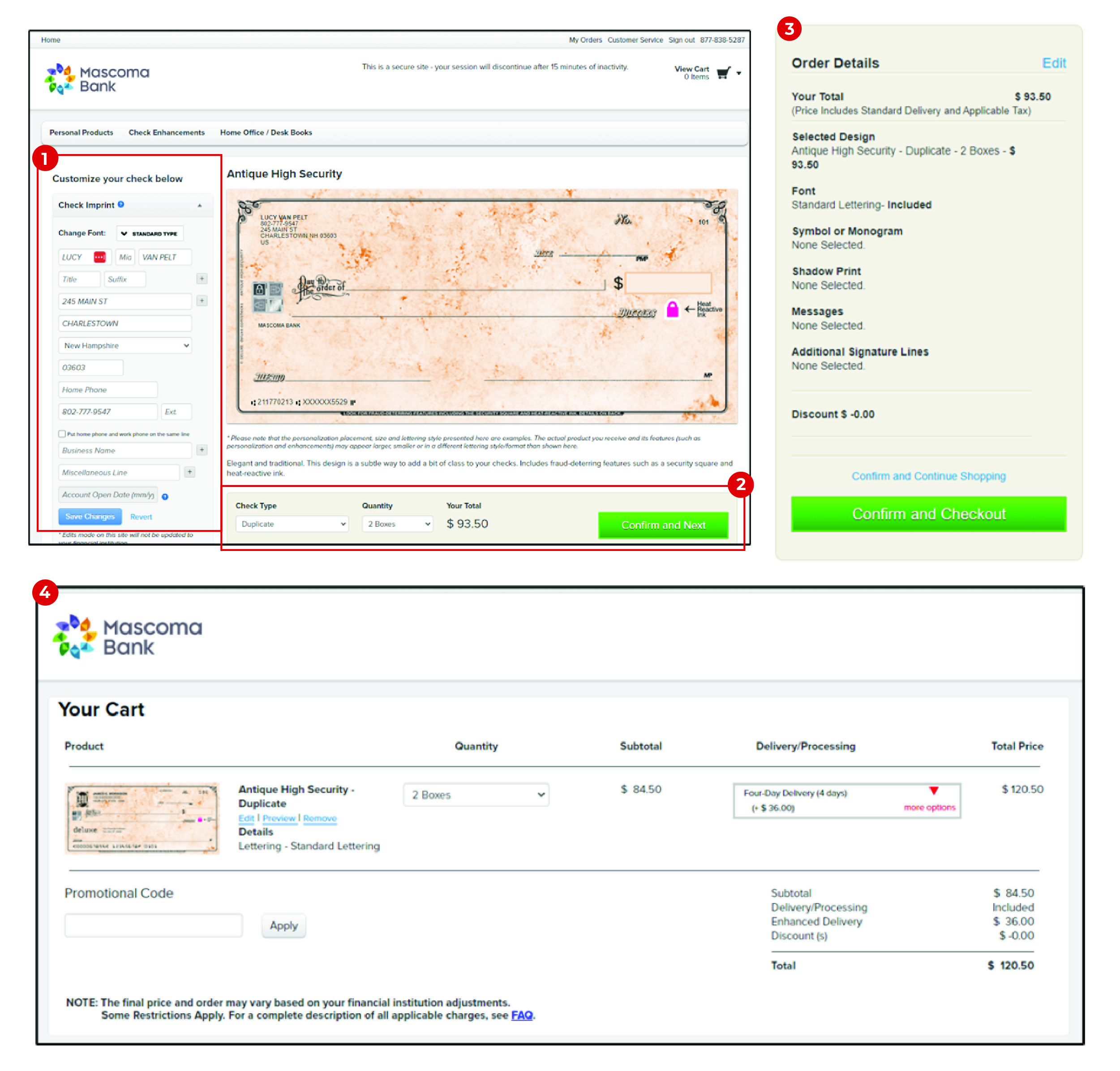
Reorder Checks from Third-Party Website
- Enter the necessary details and click on the “Save Changes” button.
- Select the check type and quantity from the drop-down menu and click on “Confirm and Next”
- Review the details and click on “Confirm and Checkout”
- Review the cart details and click on “Place Your Order”
Message Center
Your privacy is our top concern. You can securely send sensitive information such as your account number and other personal information by using the secure Message Center.
Navigating the Message Center
You can access the Message Center by clicking the envelope next to your profile icon or by navigating to Tools -> Message Center. You will be notified through the profile envelope if you have an unread message. The number of unread messages is indicated on the right side of the message envelope icon.
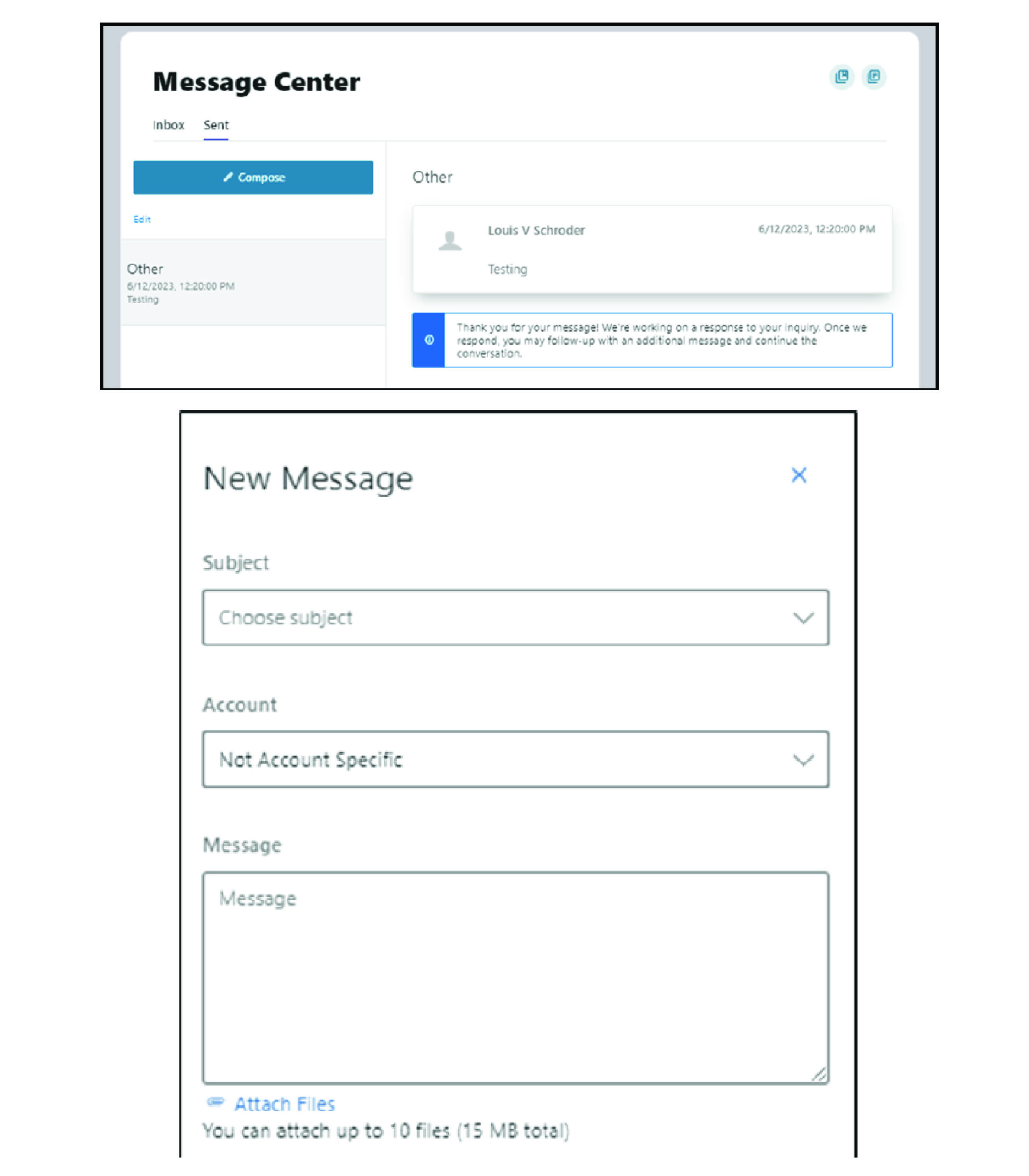
Compose a Message
- Click the “Compose” button on the inbox tab of Message Center
- Select the message Subject from the drop-down menu
- Select the Account the message refers to from the drop-down menu
- Enter the Message body and select the “Attach Files” link to attach files to the message
- Click the “Send Message” button to send the message or click the “Cancel” button to close the New Message window without sending the message
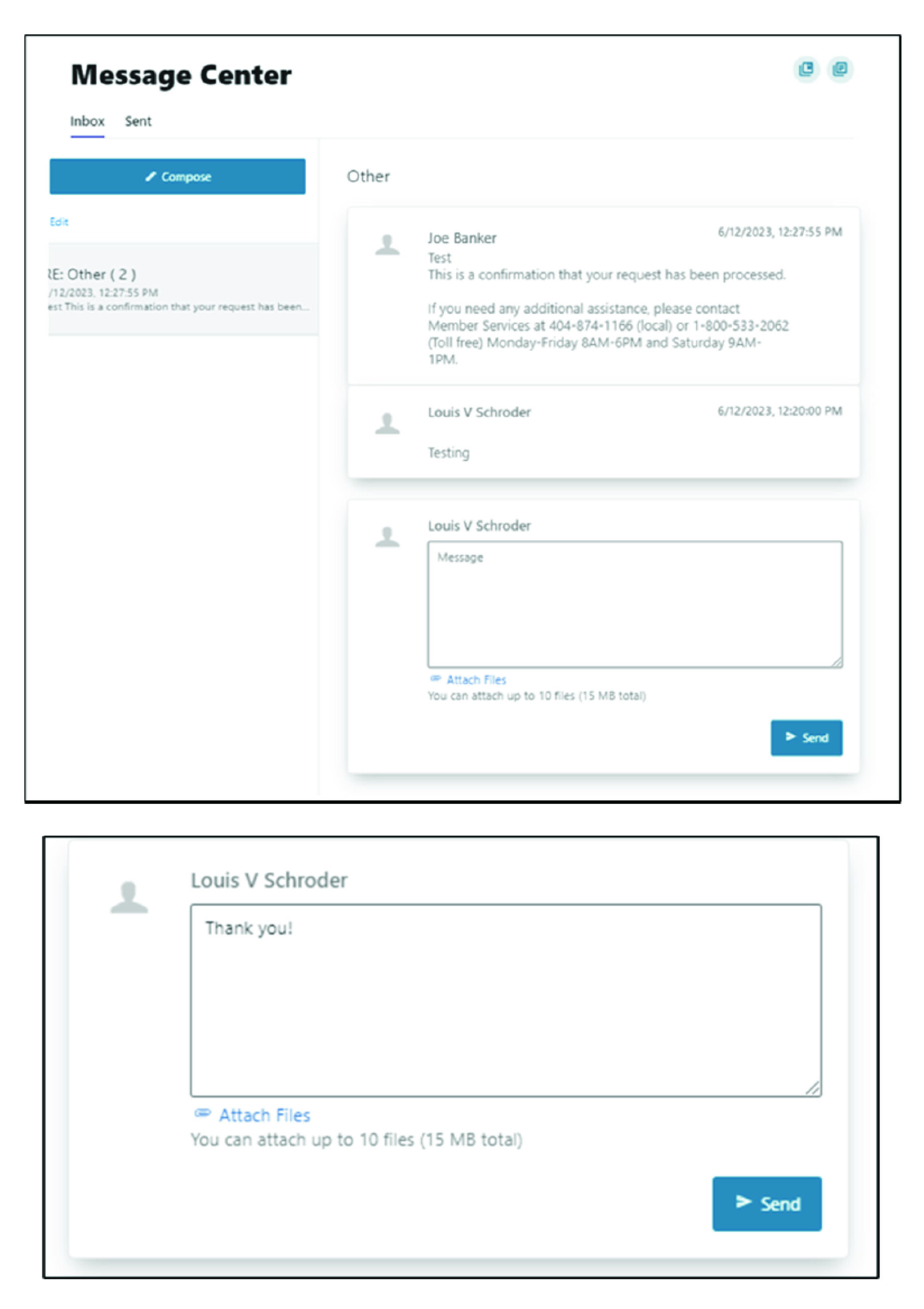
Respond to a Message
- Select the message thread to respond to
- View the messages with the thread
- Enter a Message response
- Select the “Attach Files” link to attach files to the message
- Click the “Send” button to send the response
Message Actions
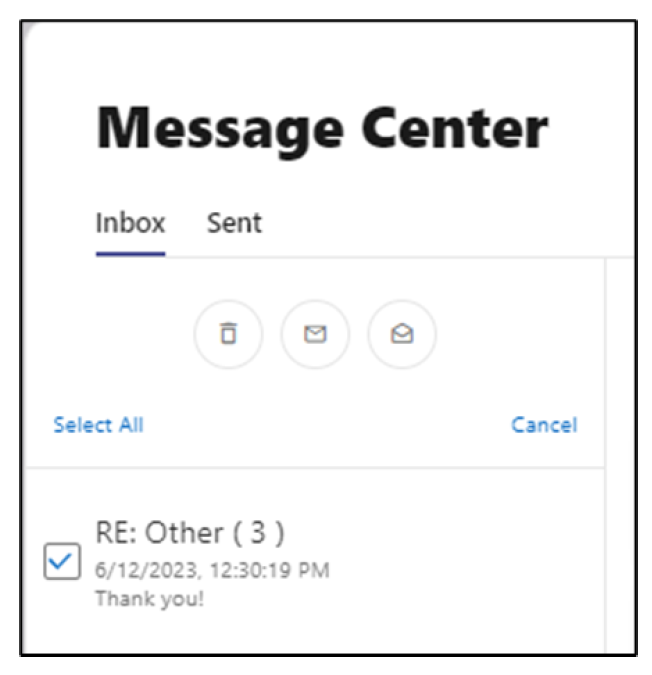
You can mark a message thread as unread or read, or delete it
- Click the “Edit” link to view the message actions
- Click the checkbox next to the message thread to act on
- Click the delete (trash can) button to delete the message threads
- Click the unread (envelope) button to mark the message thread as unread
- Click the read (open envelope) button to mark the message thread as read
Sent Messages
The sent tab allows you to view and delete messages that have been sent.
Alerts
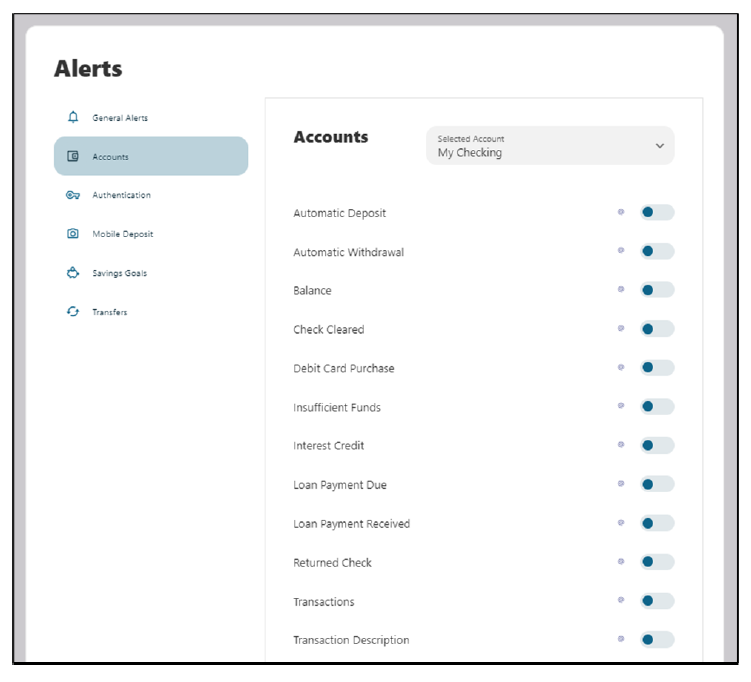
You can choose to make changes to your account alerts and notifications settings by navigating to Alerts under the Tools menu.
- General Alerts: Default security alerts and other notifications triggered by important events, such as changes to your personal information.
- Accounts: You can enable alerts and notifications for changes and activities related to your accounts such as balance, balance summary, transactions etc.
- Authentication: You can enable access to your online banking.
- Mobile Deposit: Set up notification when a mobile deposit is completed.
- Savings Goals: Set up notification when your saving goals are completed or endangered.
- Transfer: Set up notifications related to transfer activities such as transfer fails or successes, external transfer account added, etc.
SMS
You can receive alerts by email or SMS.
Before you can receive text alerts, you must verify that your phone can receive text messages.
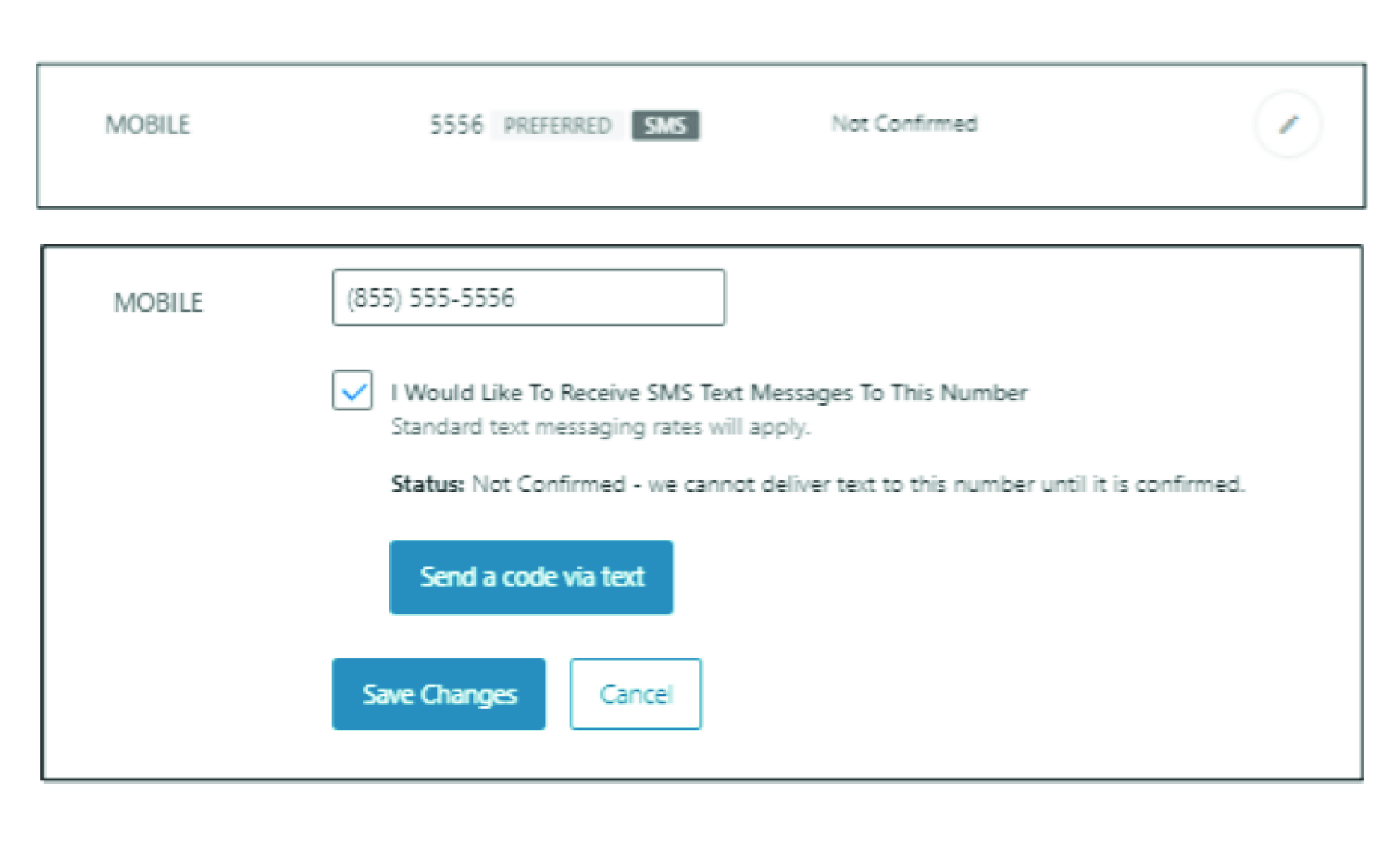
- Within Digital Banking, go to the Tools menu, then select “Settings,” then “Contact”
- Click on the pencil icon next to Mobile to edit
- Add your mobile number and click the box next to “I Would Like to Receive SMS Messages to This Number”
- Click “Send a code via text”
- Click “Save Changes”
- You will receive a text message to your mobile number with a code. Please enter this number to complete the verification process
Locations
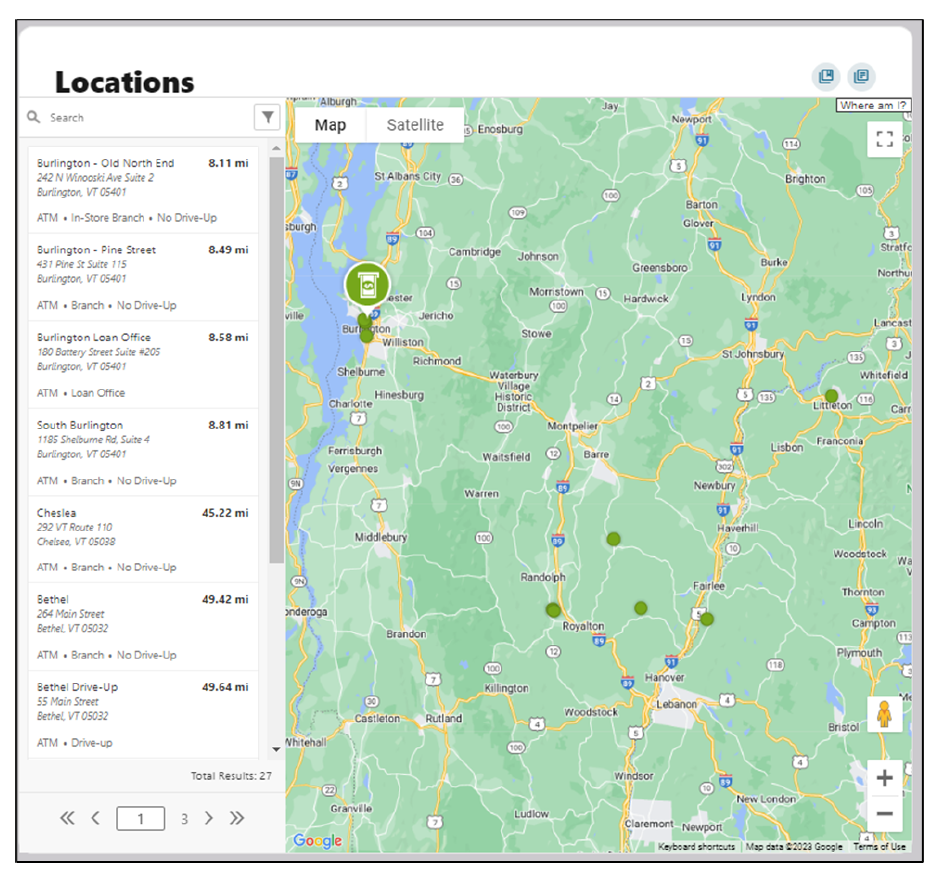
You can access information regarding Mascoma Bank ATM locations and branches by navigating to Locations under the Tools menu.
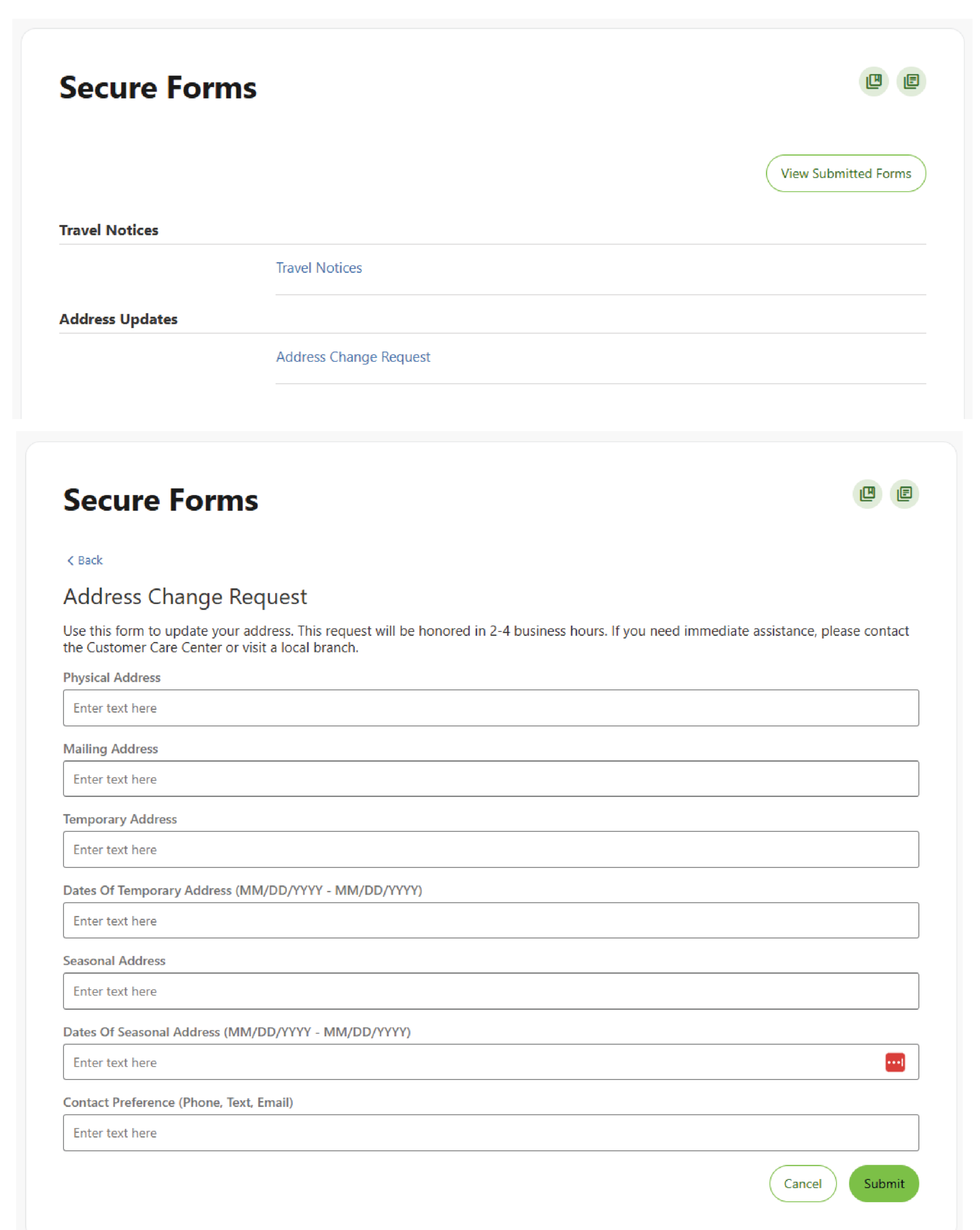
Secure Forms
To navigate to the secure forms, go to the Tools menu > Customer Service. Here you can submit an address change.
Select the address change form, complete the fields, and hit “Submit.” You can also view your submitted forms by clicking the button shown above.
Note: With your new Mascoma Bank Visa debit card, you no longer need to submit a travel notice when you use your card away from home.
Please reach out if you have questions or need additional assistance.