To access Bill Pay, navigate to Transfer and Pay menu option and select “Bill Pay.” The Activity tab lists all the scheduled and historical bill pays.
Pay Bills
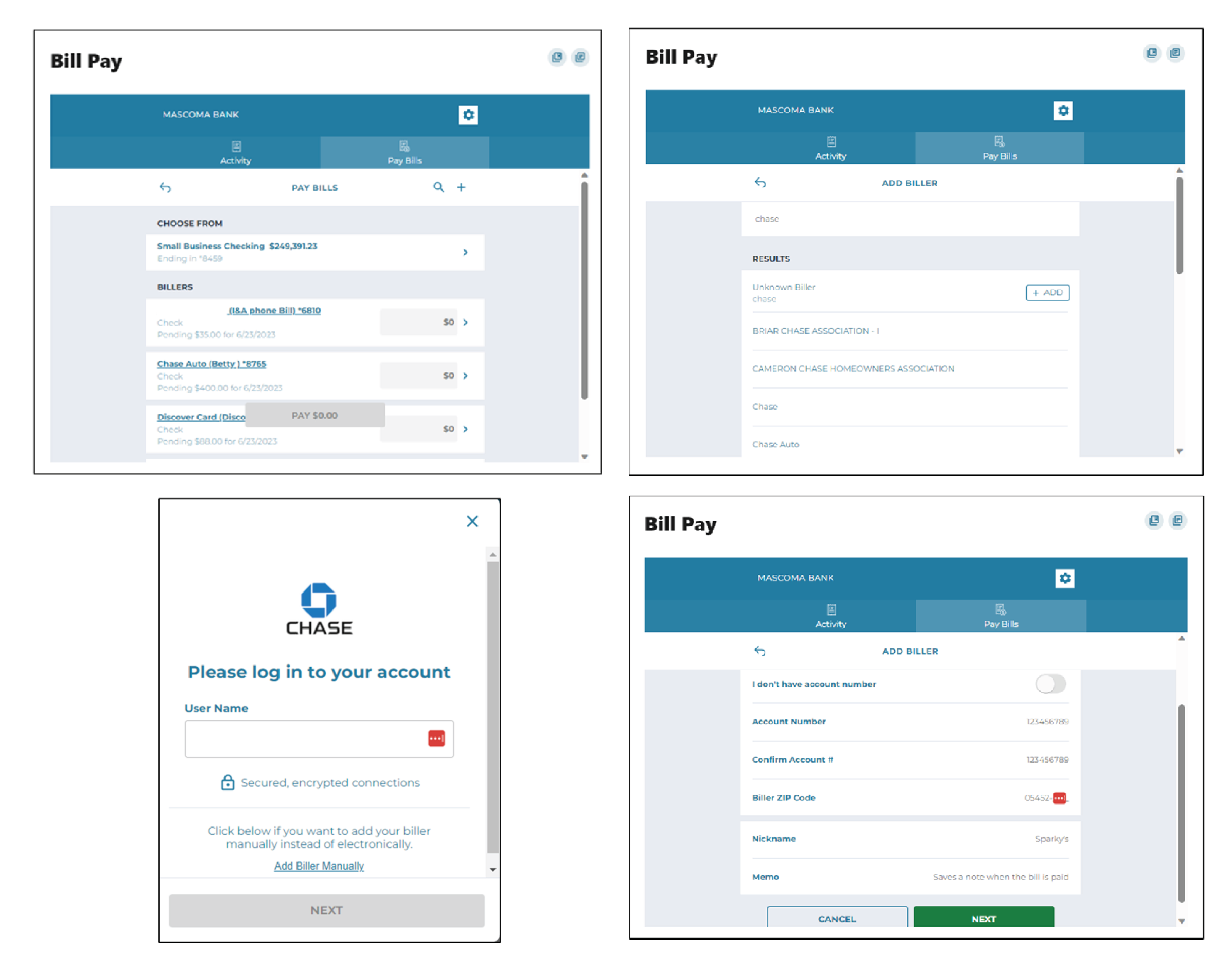
Select the Pay Bills tab to add business payee and pay a business.
Add a Business Payee for Bill Pay
- Click on “+” next to the search icon
- Enter the name of the biller you would like to add or add one manually by clicking the “Add” button
- You can either log in to the chosen business’s online platform by entering your credentials or click “Add Biller Manually” and click the “Next” button
- To add a biller manually: enter all the biller information such as, name, account number, zip code, nickname, and memo and click the “Next” button. The next screen will request that you add the address of the biller
- Verification is needed to add a business as a biller. A code is sent to your chosen method – email, text, or call. Enter the code and click the “Verify” button
Pay a Business
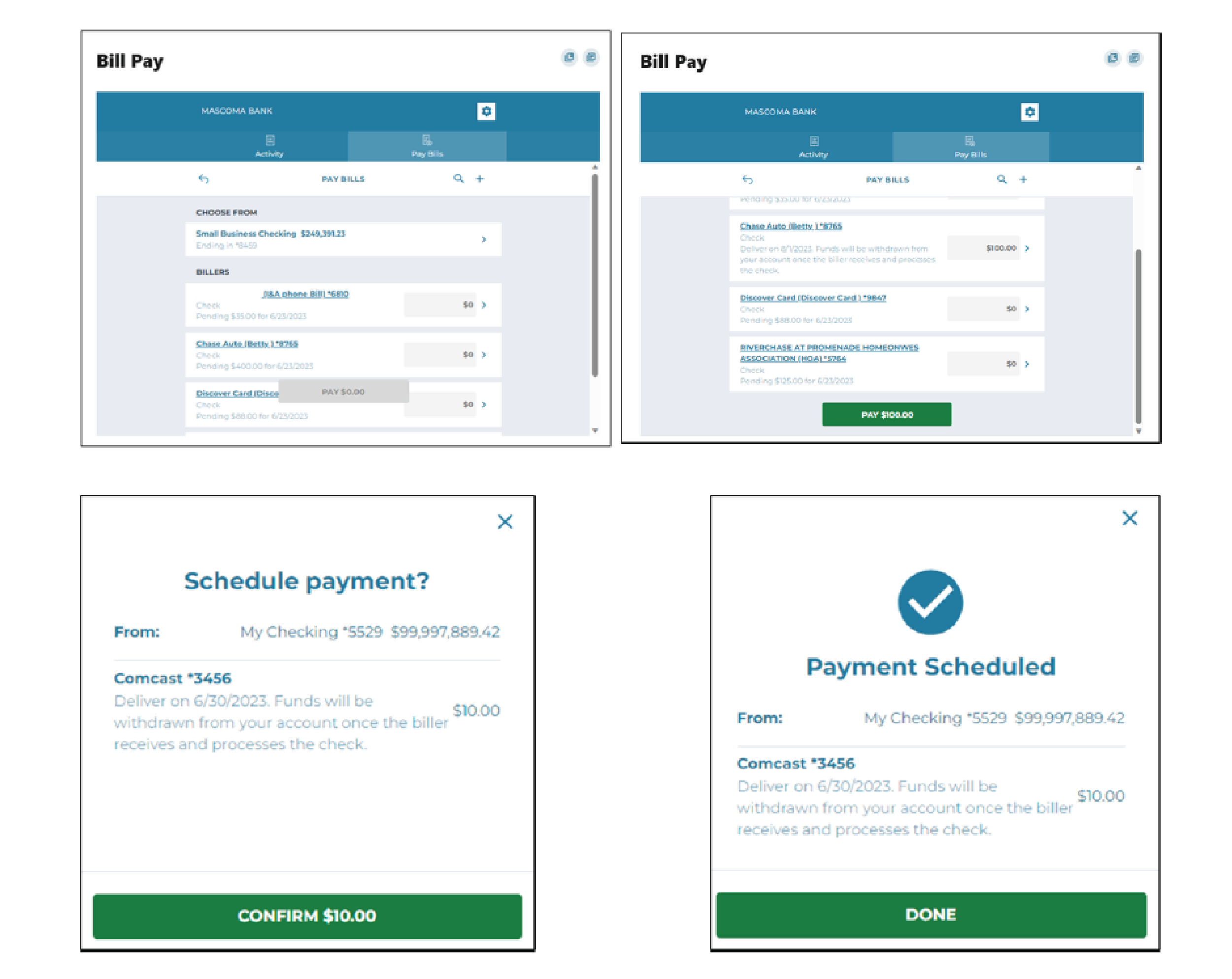
- Select “Pay Bills” tab in Bill Pay
- Select the account under “Choose From”
- Select the Biller and enter the amount to pay. Click on “Pay $XX.XX”
- Payment is scheduled. Click the “Done” button
Pay A Person
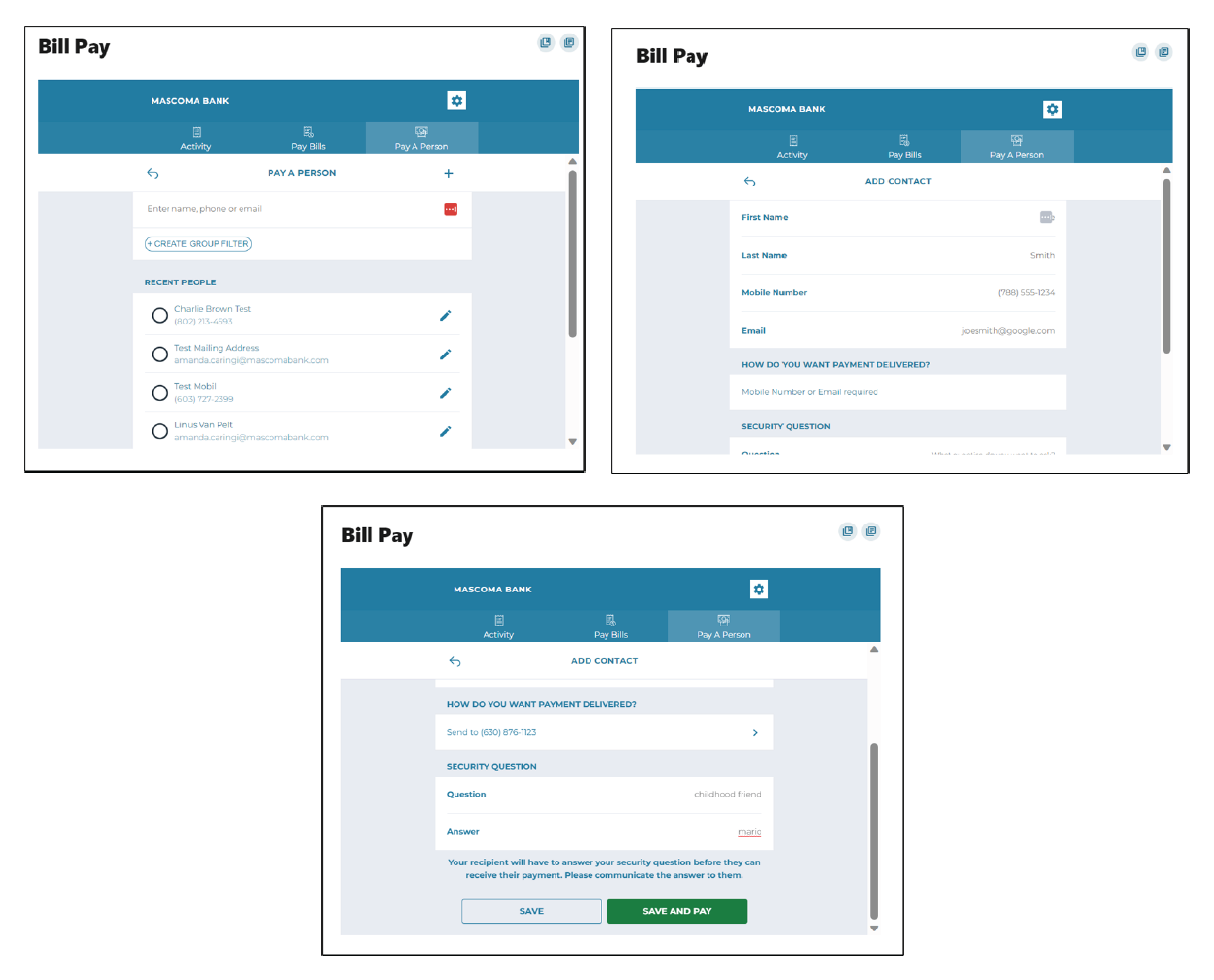
Add a Payee – Individual
- Select “+” next to “Pay a Person”
- Enter the contact details of the individual including, First Name, Last Name, Mobile Number, and a Security Question. The mobile number is the default payment delivery method. You can choose email address by clicking on the arrow.
- Click on the “Save and Pay” button
- Verification needed. Select text, email or call to receive the code
Pay a Person – Individual
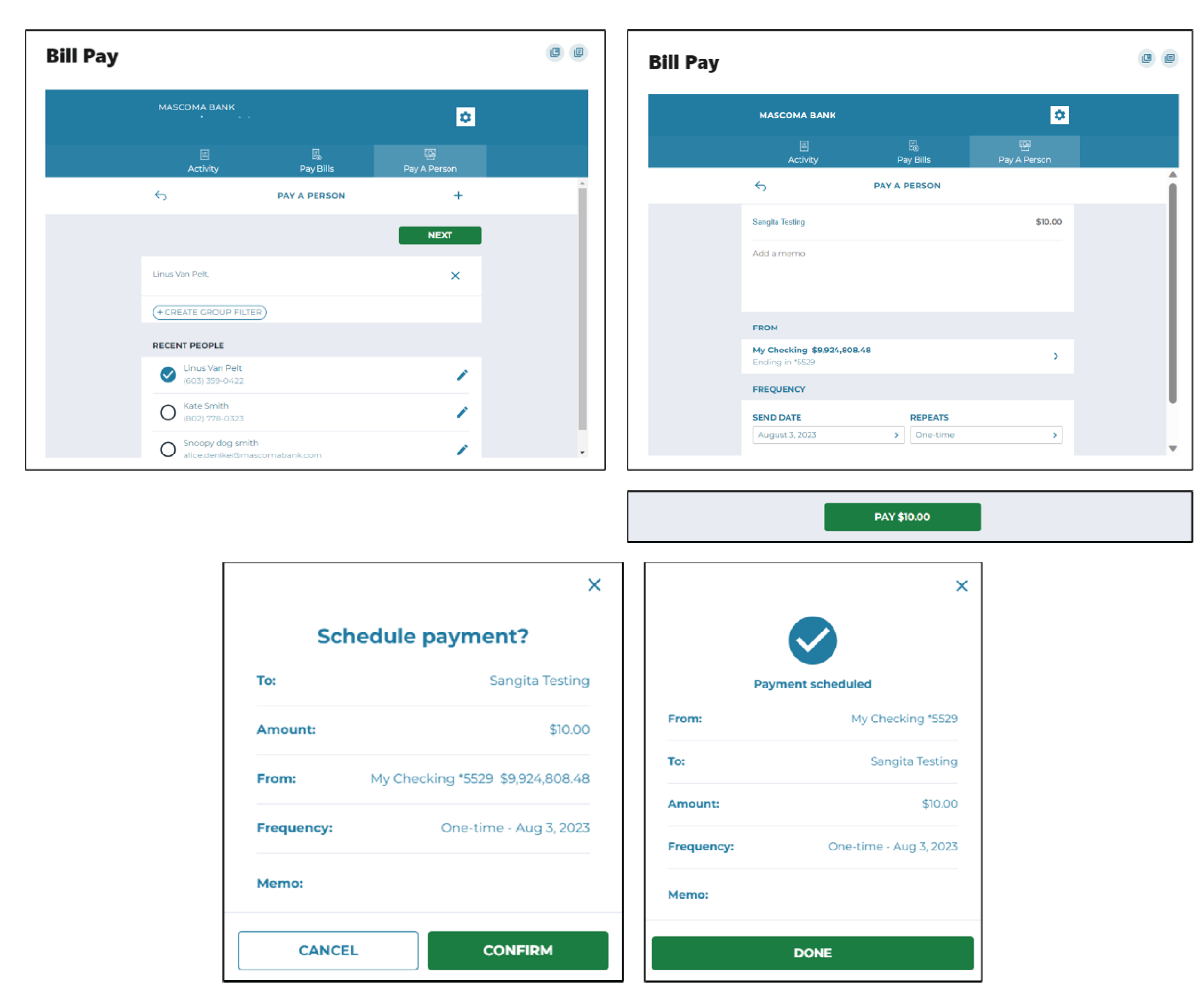
- Select an individual payee by clicking the radio button next to their name
- Enter the $ amount, add a memo, select the “From” account and enter the date and frequency for payment. Click on the “Pay” button
- Confirm payment
Please reach out if you have questions or need additional assistance.