You can temporarily block or unblock your Mascoma debit card at any time through Digital Banking.
This feature helps you prevent new transactions if your card is misplaced and reactivates it
instantly once it’s found. Here are the steps to block and unblock your card.
Accessing Card Management
Step 1: Sign in to Digital Banking
Log in using your username and password.
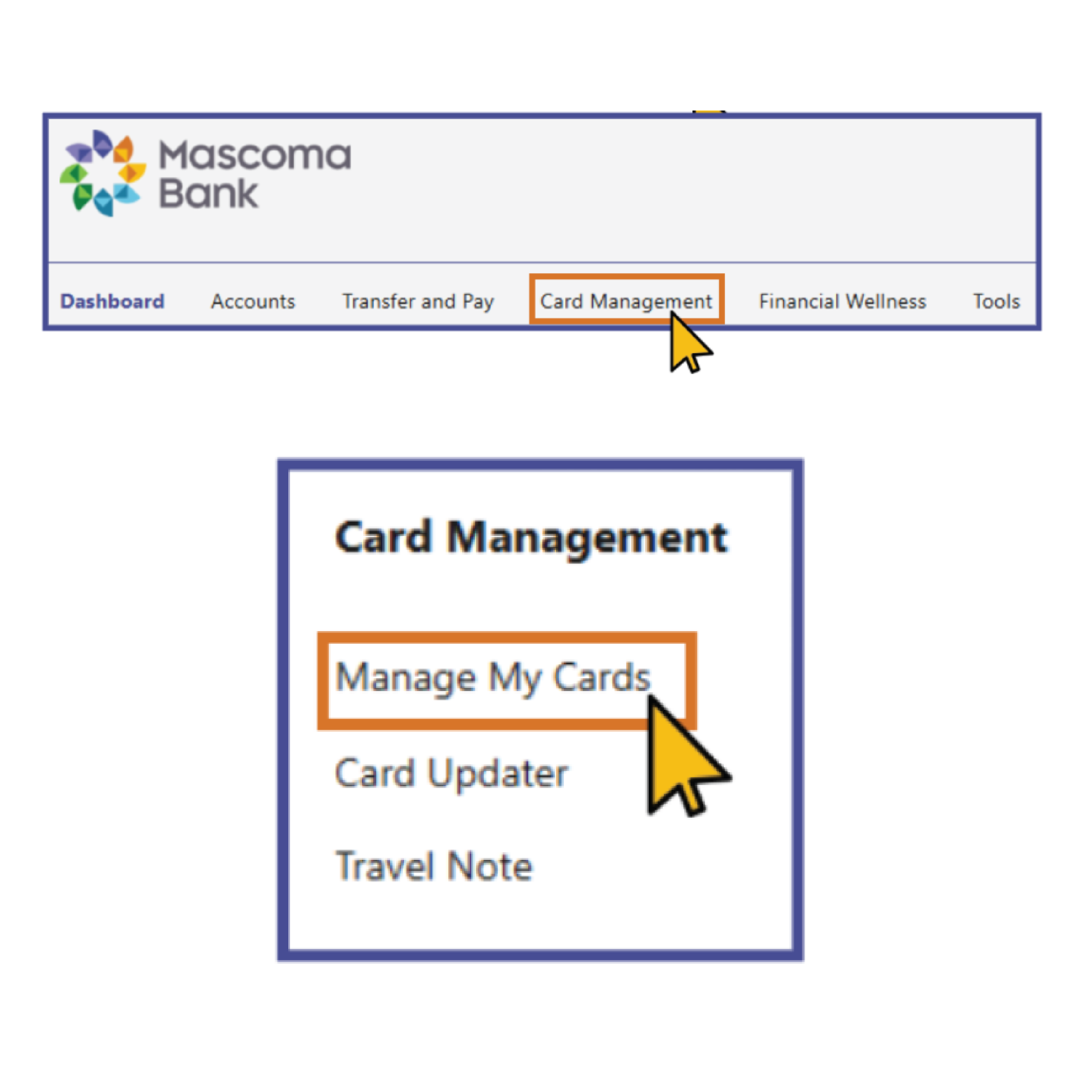
Step 2: Open the Services Menu
At the top of the screen, select Services.
Step 3: Choose Card Management
Click Card Management.
Step 4: Select Manage My Cards
This will display all debit cards associated with your account.
Step 5: Locate Your Card
Choose the card you want to block or unblock.
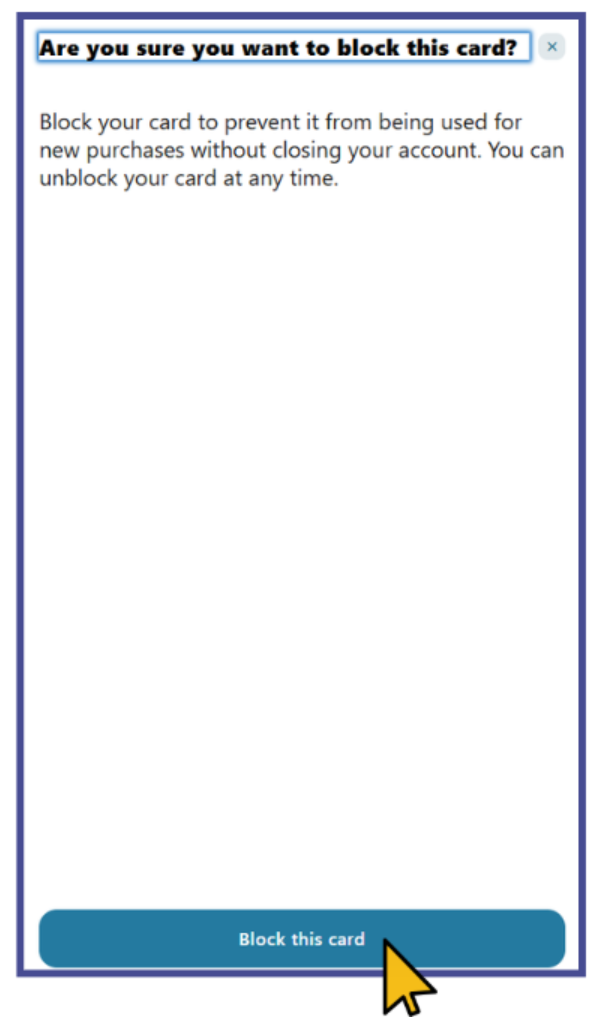
Step 2: Confirm the Block
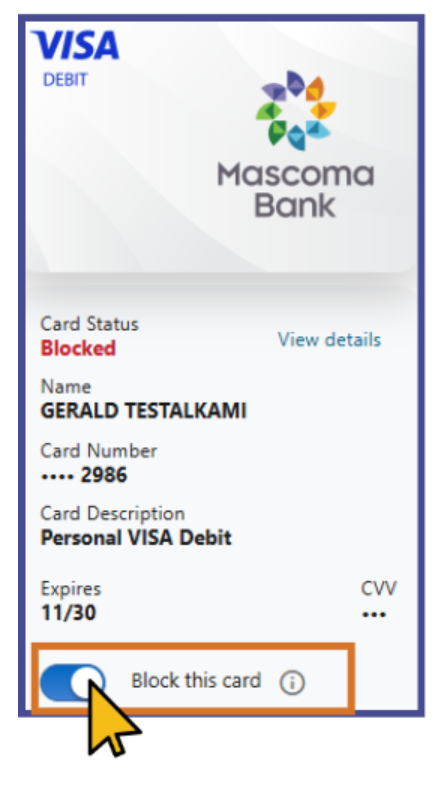
Review the confirmation message and approve. Your card status will immediately update to Blocked, preventing new transactions.
Note: This is a card control feature — it does not permanently disable or cancel your card.
Unblocking Your Debit Card
If your card is currently blocked, you can reactivate it in just a few steps.
Step 1: Return to Card Management
Navigate back to Manage My Cards.
Step 2: Select “Unblock Card”
Choose the option to remove the temporary block.
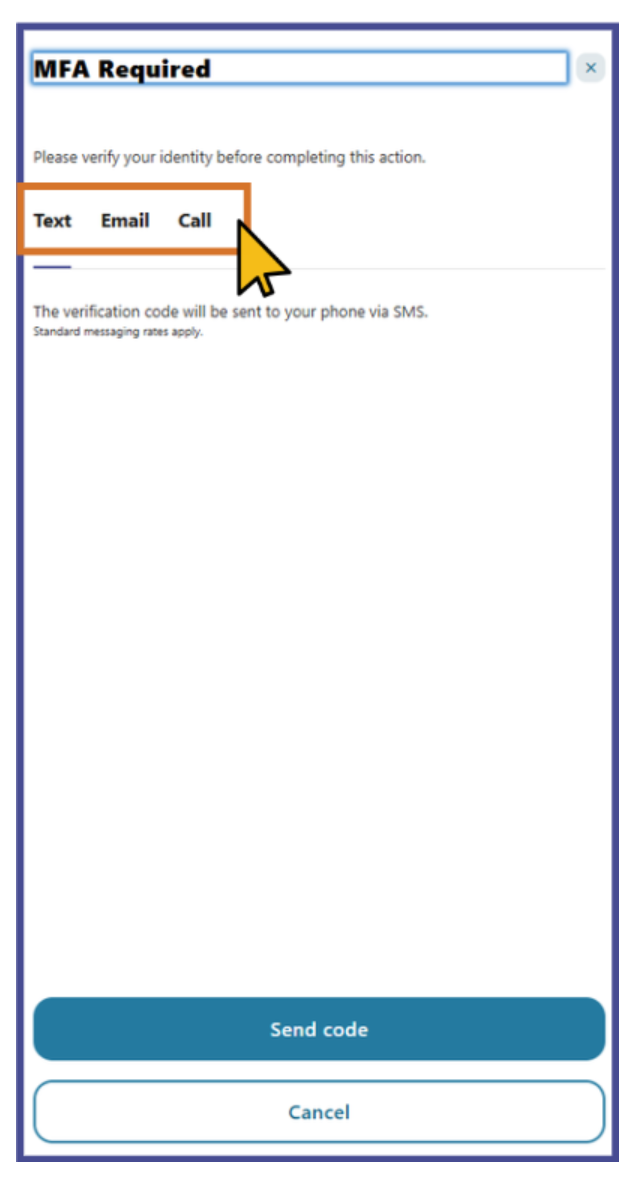
Step 3: Enter Verification Code
Enter the code when prompted and select Verify.
Step 4: Card Reactivated
Your card is now active again and ready for use.
You will receive a notification confirming that your card has been successfully unblocked.
Please reach out if you have questions or need additional assistance.