You can add your Mascoma debit card to Apple Pay or Google Wallet directly from the Mascoma Digital Banking App. Follow the steps below to get set up quickly.
Step 1: Log in to Digital Banking
Open the Mascoma mobile app and sign in to your account.
Step 2: Open Card Management
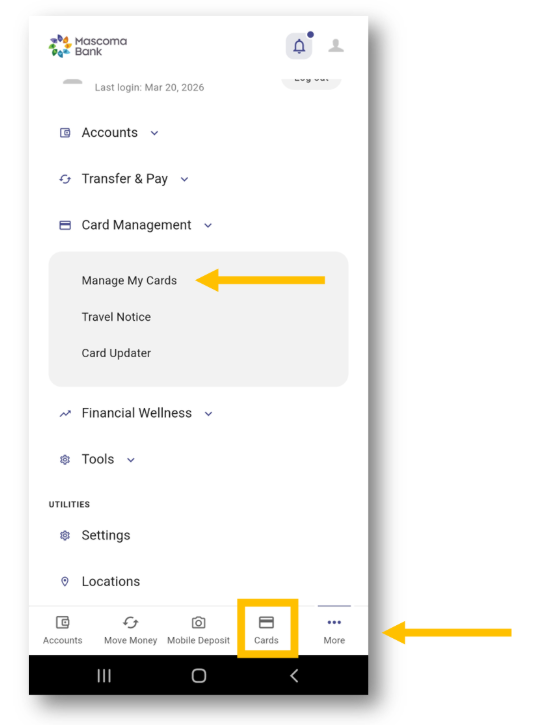
Tap the Cards icon and select the debit card you want to add.
You can also access this screen by going to More > Card Management / Manage My Cards.
Step 3: Choose Your Card and Add to Wallet
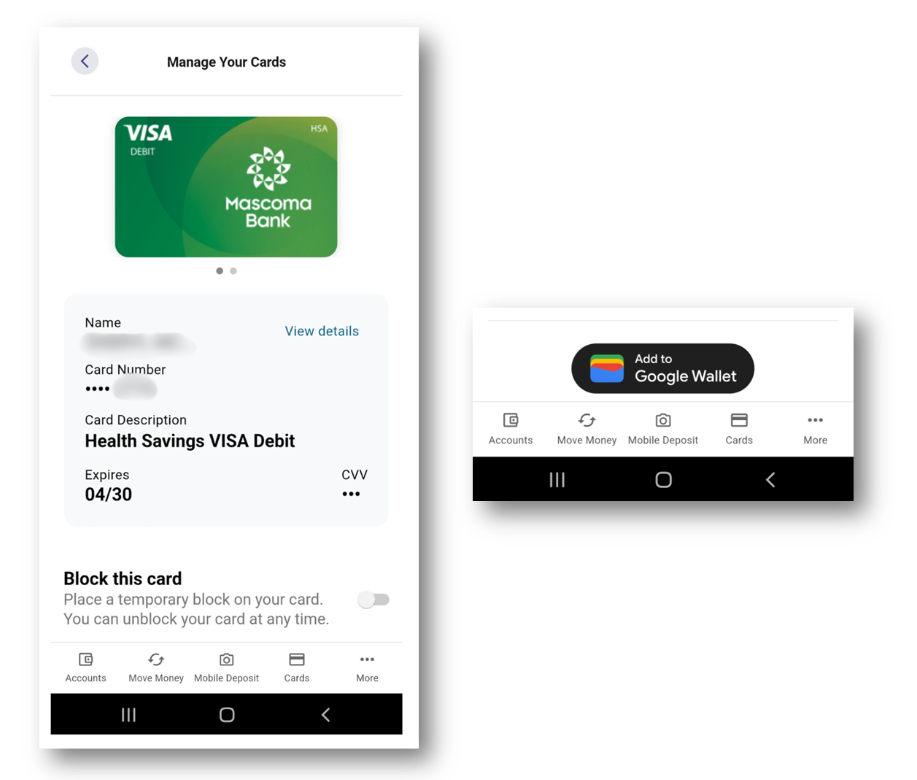
If you have multiple cards, swipe left or right to find the one you want.
Once selected, scroll down and tap Add to Digital Wallet (Apple Pay or Google Wallet).
Step 4: Confirm Your Information
Follow the on‑screen prompts. You’ll be guided through a few quick steps to verify your details.
Step 5: Complete Wallet Verification
Your digital wallet may ask you to confirm or approve the card before it becomes active.
Step 6: Start Using Your Digital Wallet
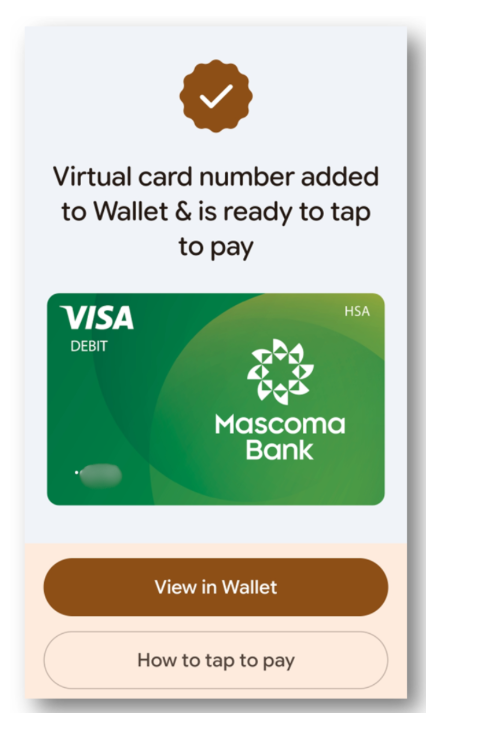
Once approved, your Mascoma debit card is ready to use on your phone or smartwatch anywhere digital wallets are accepted.
If you add your card before the physical card arrives, consider temporarily blocking it for security. After your card arrives, you can unblock it and begin using it normally.
Learn how to block and unblock your card HERE
.
Please reach out if you have questions or need additional assistance.