This article shows you how to find your checks in online or mobile banking so you can access them anytime.
Step 1: Log in to Digital Banking
Step 2: Go to Accounts and select the checking account where the check was deposited or cleared.
Step 3: In your Account History, scroll to find the transaction.
- Any debit marked with the check icon includes front and back images of the check—similar to what previously appeared on paper statements.
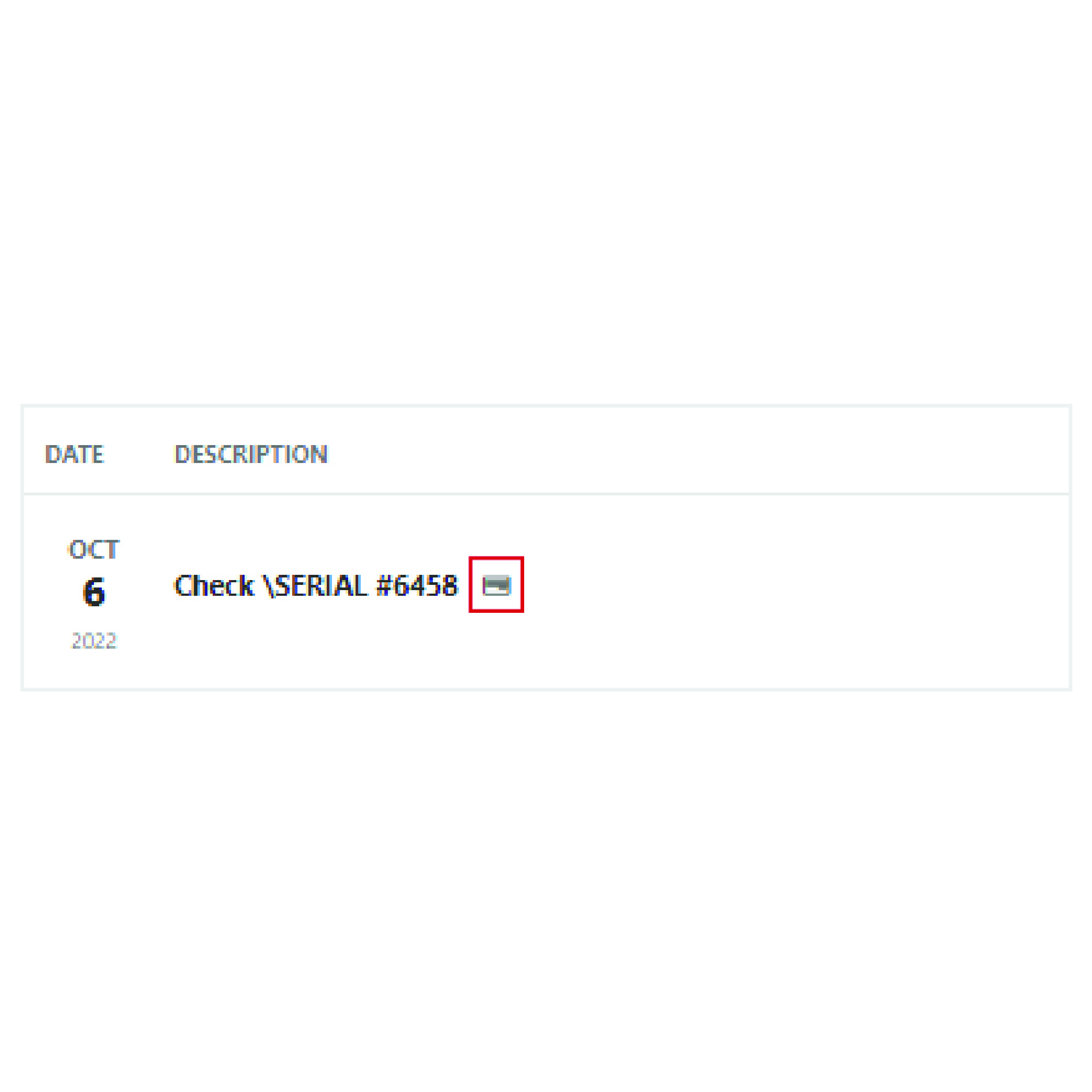
Step 4: Click the transaction to expand the details and view the check images.
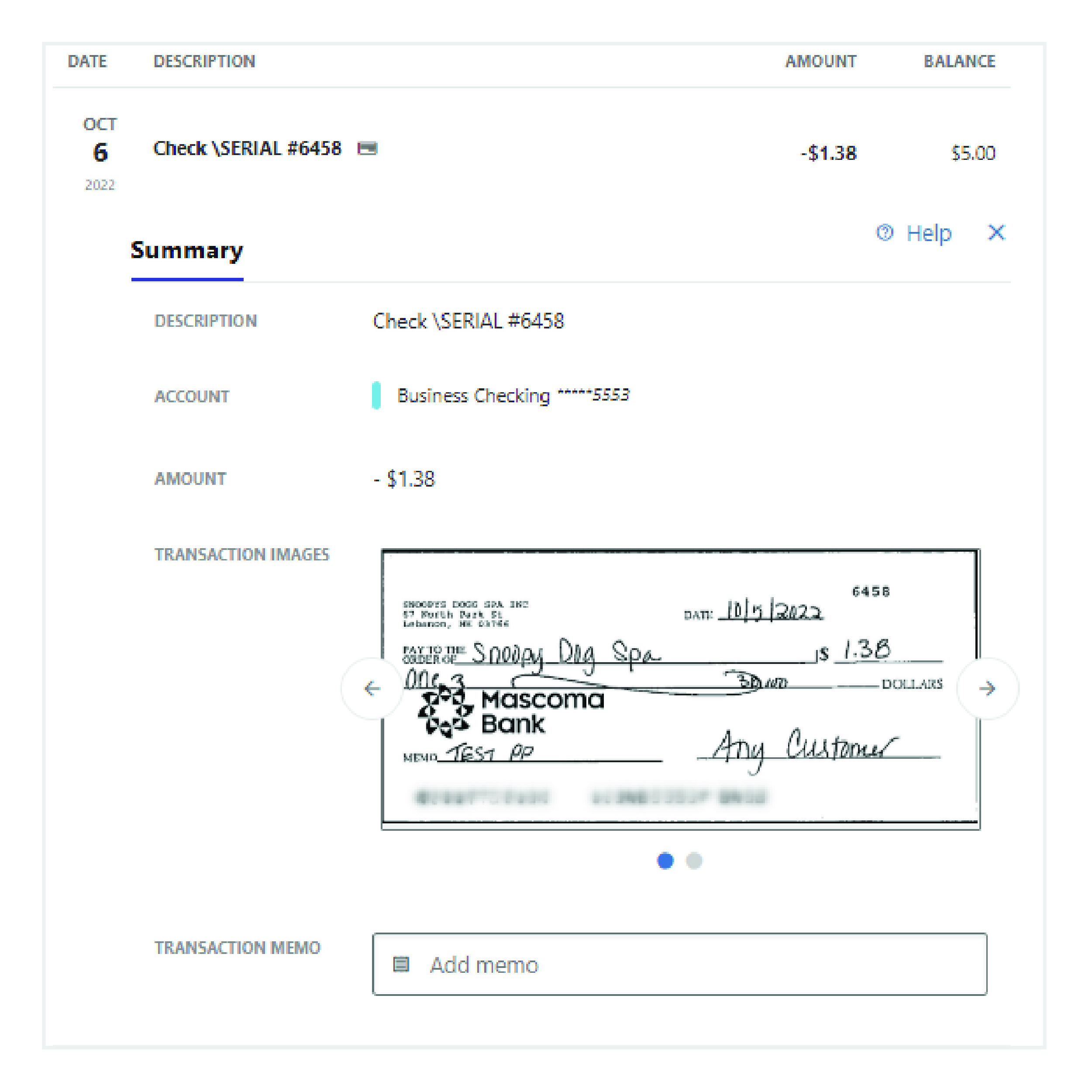
Tip: If you’re looking for a check from a previous month, use the date filter or search bar in your transaction history to expand the date range.
Mobile Banking Steps
Step 1: Log in to your mobile banking app.
Step 2: Go to Accounts and select the checking account where the check was deposited or cleared.
Step 3: In your Account History, scroll to find the transaction.
- Any debit marked with the check transaction icon includes the front and back images of the check—just like what used to appear on paper statements.
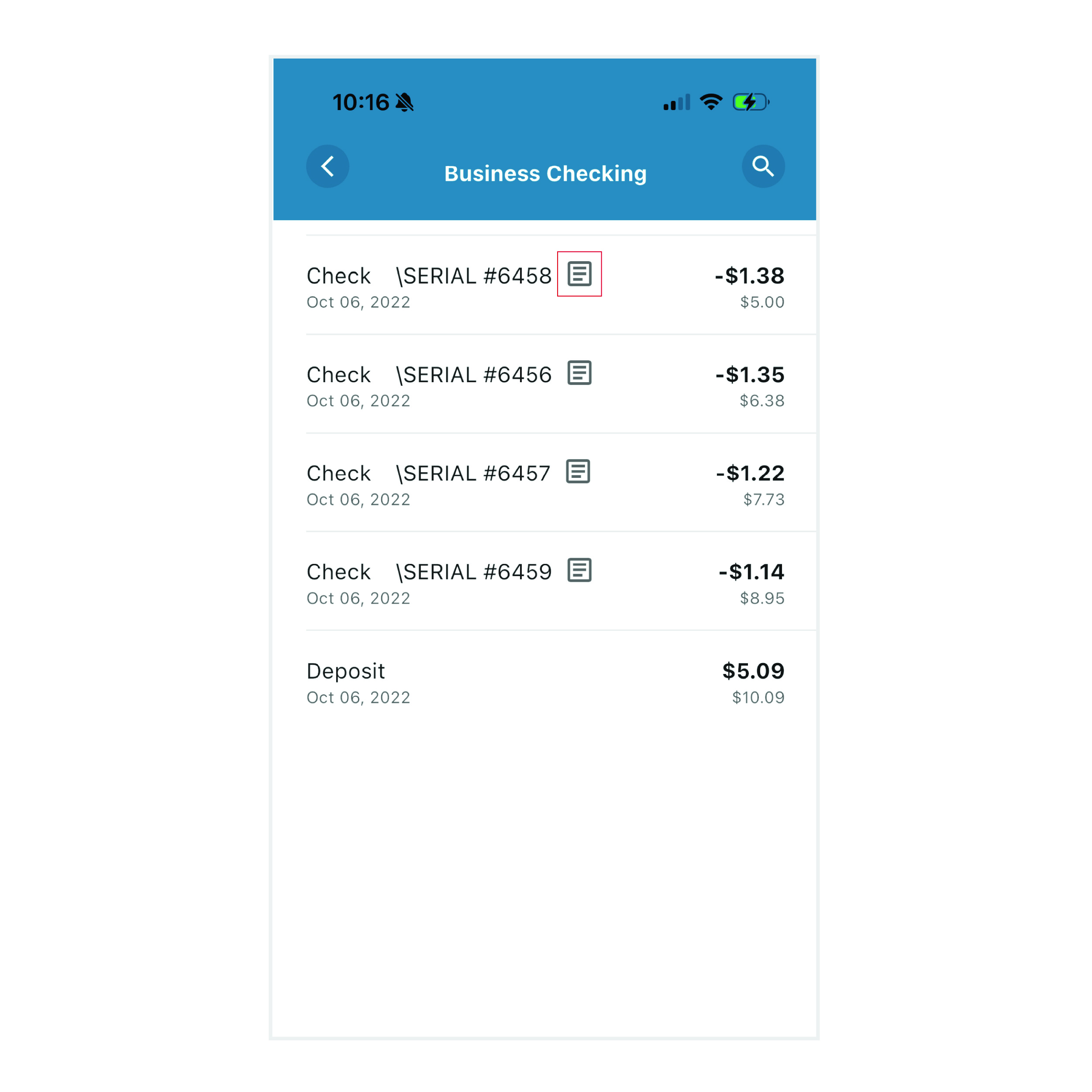
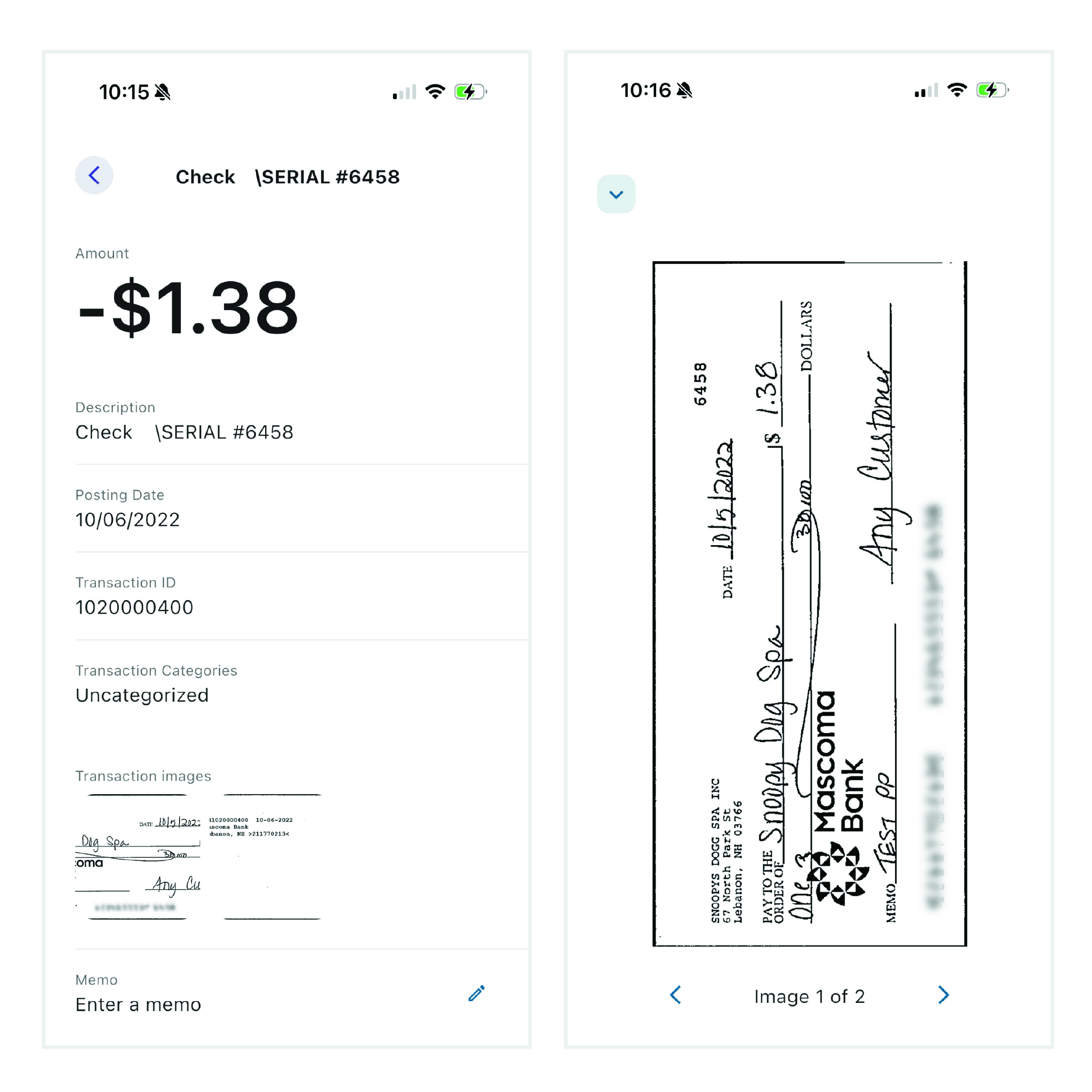
Step 4: Tap the transaction to open the details and view the check images.
Please reach out if you have questions or need additional assistance.