You can securely access your full card information—including card number, expiration date, and security code—through Digital Banking. Follow the steps below to view your card details.
Step 1: Sign in to Digital Banking
Use your username and password to access your account.
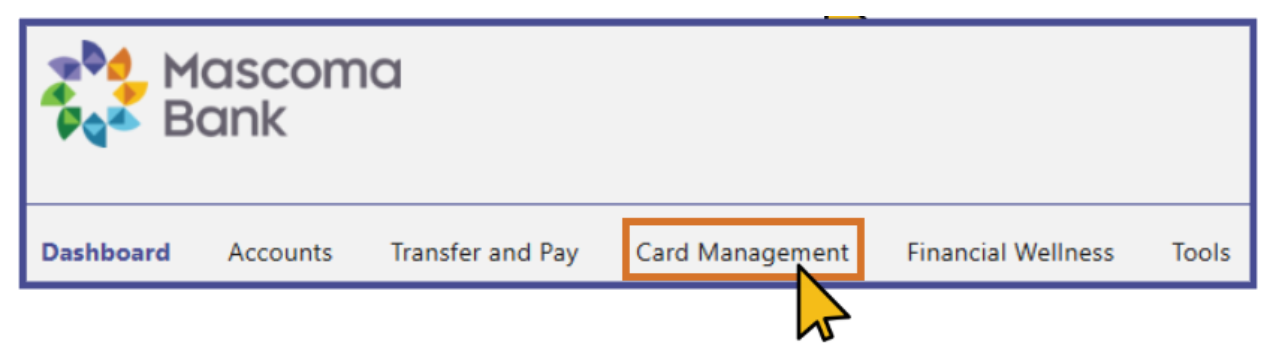
Step 2: Go to the Accounts or Services Menu
These options appear in your main navigation once you’re signed in.
Step 3: Select Card Management
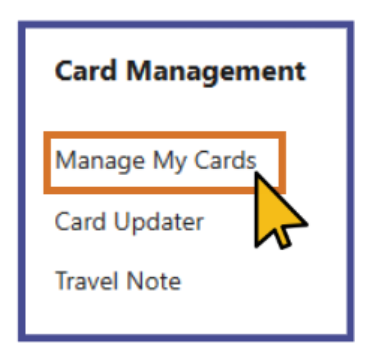
Step 4: Choose Manage My Cards
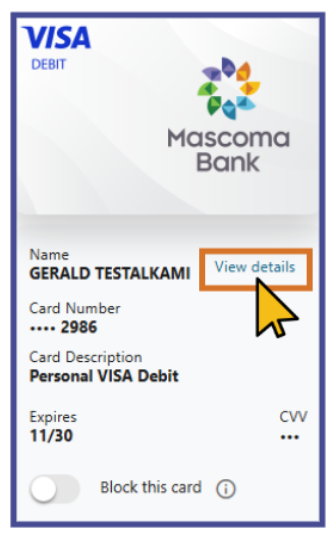
Step 5: Find the card you want to view and select View Details
Step 6: Complete Multi‑Factor Authentication (MFA)
Choose how you’d like to receive your verification code (text message, email, or phone call).
Step 7: Enter the verification code
Once you receive it.
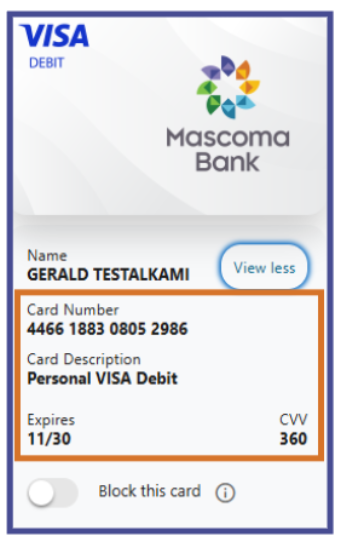
Step 8: View your full card information
After verification, your complete card details will be displayed securely.
Mobile Banking Steps
Step 1: Sign in to Mobile Banking
Step 2: Navigate to the bottom menu.
Step 3: Click on the More tab and select Accounts
Step 4: Choose Card Management
Step 5: Locate your card. Click View Details next to Card Number.
Step 6: View full card information.
Please reach out if you have questions or need additional assistance.